
User guide
Using RabbitRMM day to day
One section per page of the portal, in the order they appear in the menu. Every list opens an item when you click its row; edit and delete live inside the item, not on the row.
Dashboard
The dashboard counts what needs attention across the clients your role covers: devices online, devices needing updates, pending reboots, failed updates, open alerts and running jobs. Every tile and chart slice is a link to the exact devices behind the number.
Drag tiles to rearrange them and use Add widget to add charts. The patch numbers all come from one classifier, so the compliance bar, the donut and the device list always agree.
Clients
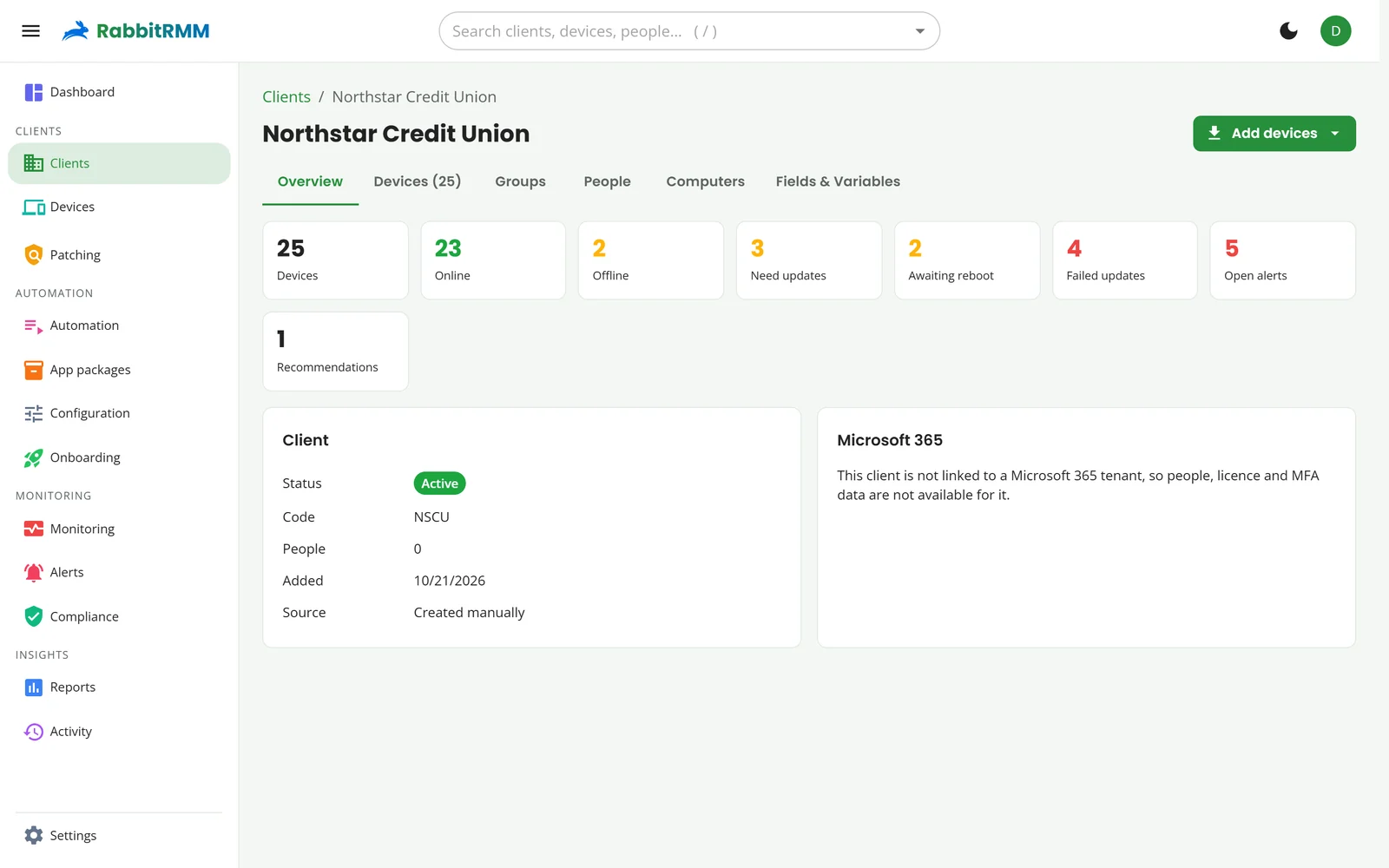
A client's page has an overview (devices, alerts, recommendations), its Devices, Groups, People from Microsoft 365 and Active Directory, Computers from Active Directory, and Fields & Variables: values scripts can read as $Name or $env:Name.
- People show their source (Microsoft 365 or AD), MFA status and last sign-in. People idle for 90 days are flagged.
- Download onboarding media builds the client's USB package for imaging.
- Removing a client asks what to do with its devices and integrations first.
Devices
Devices are split into Servers, Workstations & Laptops, Hypervisors and Networking. Filter by client, status or anything in the search box (host, OS, tag, user, IP). Select rows, or select all matching, for bulk actions: tag, run a job, patch, reboot, set location, turn privacy mode on.
Click a device to open it. The header shows its type, the assigned person, tags and whether it can be woken. The tabs:
| Tab | What it shows |
|---|---|
| Overview | OS, hardware, warranty, IP and MAC, the switch port it is on, last user, MFA, last check-in and last reboot. |
| Applications | Installed software, including per-user installs, with Uninstall per app. |
| Updates | Missing and failed updates, with Install and Fix actions. |
| Resources | CPU, memory, disk and network charts (1 hour to 7 days), disks, top processes, plus Drivers, Services, Processes and Registry views. |
| Alerts, Tickets | This device's alerts and the PSA tickets raised for it. |
| Security | Antivirus, firewall, tamper protection, disk encryption and vulnerabilities by severity. |
| Automation, Configuration, Backups | Script runs, configuration compliance per item, and backup history. |
| UDF, Onboarding, History | Custom fields, onboarding progress and everything that happened to the device. |
The ribbon across the top holds the actions: Remote, PowerShell, CMD, Files, Registry, Services, Agent Deployment, Task Manager, then Patch (with or without reboot), Reboot, Wake, Deploy app and Run job. Admins can add up to five custom buttons of their own.
Remote access
- Remote opens remote desktop in its own window. Each monitor appears as a thumbnail; on servers with several signed-in users, pick the Windows session.
- PowerShell and CMD open a real terminal on the device, connected immediately.
- Files browses the disks; download or upload with a click.
- Privacy mode: on attended workstations and laptops, the user is asked to allow each session. Servers and hypervisors are never prompted. While a session is open the user sees who is connected.
Wake sends Wake-on-LAN through another online agent on the same network, so the sleeping machine does not need to be reachable from the internet.
Patching
The client picker at the top switches between Global (all clients) and a single client. There are three tabs.
Policies and the catalog
A policy says what to install, when and how to reboot, and who it applies to. Below the policies, the update catalog lists every update RabbitRMM has seen. Updates are blocked until approved; approve or block per client or for everyone. From a KB you can roll it back across a client, which uninstalls it and blocks it so it does not return.
Rollouts
Policies with rings create a rollout per client each window. Each ring shows its devices, failures, offline count and alerts. A ring passes when it has soaked and stayed healthy; it halts if failures or offline devices pass your limits or a critical alert fires, and the update that caused it is blocked. Use Advance to move on early or Halt to stop.
Patch history
Every maintenance window per client with how many devices it covered and how it ended. For the exact KBs installed on each device, use the Patches installed report.
Letting users choose
With allow user scheduling on a policy, the pre-stage email includes a link where the user picks the company time, a one-off time, or a time that sticks for future windows.
Automation
Automation has four tabs: Scripts, Jobs, Workflows and Schedules.
- Scripts: built-in scripts are read-only; duplicate one to make an editable copy. Scripts have a shell, parameters (mark sensitive ones as secret), a category, tags and an automation level.
- Generate with AI in the script editor writes a script from a description, which you review before saving.
- Jobs show each run across devices, with live output per device.
- Workflows chain steps (scripts, app installs) and can be triggered by a monitor check or by configuration drift.
- Schedules run a script on a target on a recurring schedule.
Scripts can write back to a device's custom field by printing ##UDF[FieldName]##value.
App packages
Browse catalog adds any of 371 apps; RabbitRMM keeps them on the latest version. Upload an application adds your own installer with silent arguments, and each upload becomes a version you can roll back to.
Deploy now, in the next maintenance window, or at a time. A detection rule (exact or regex, checked against the device's inventory) confirms the install. Apps that only install per user are installed for the signed-in user; if nobody is signed in, the install waits.
Configuration
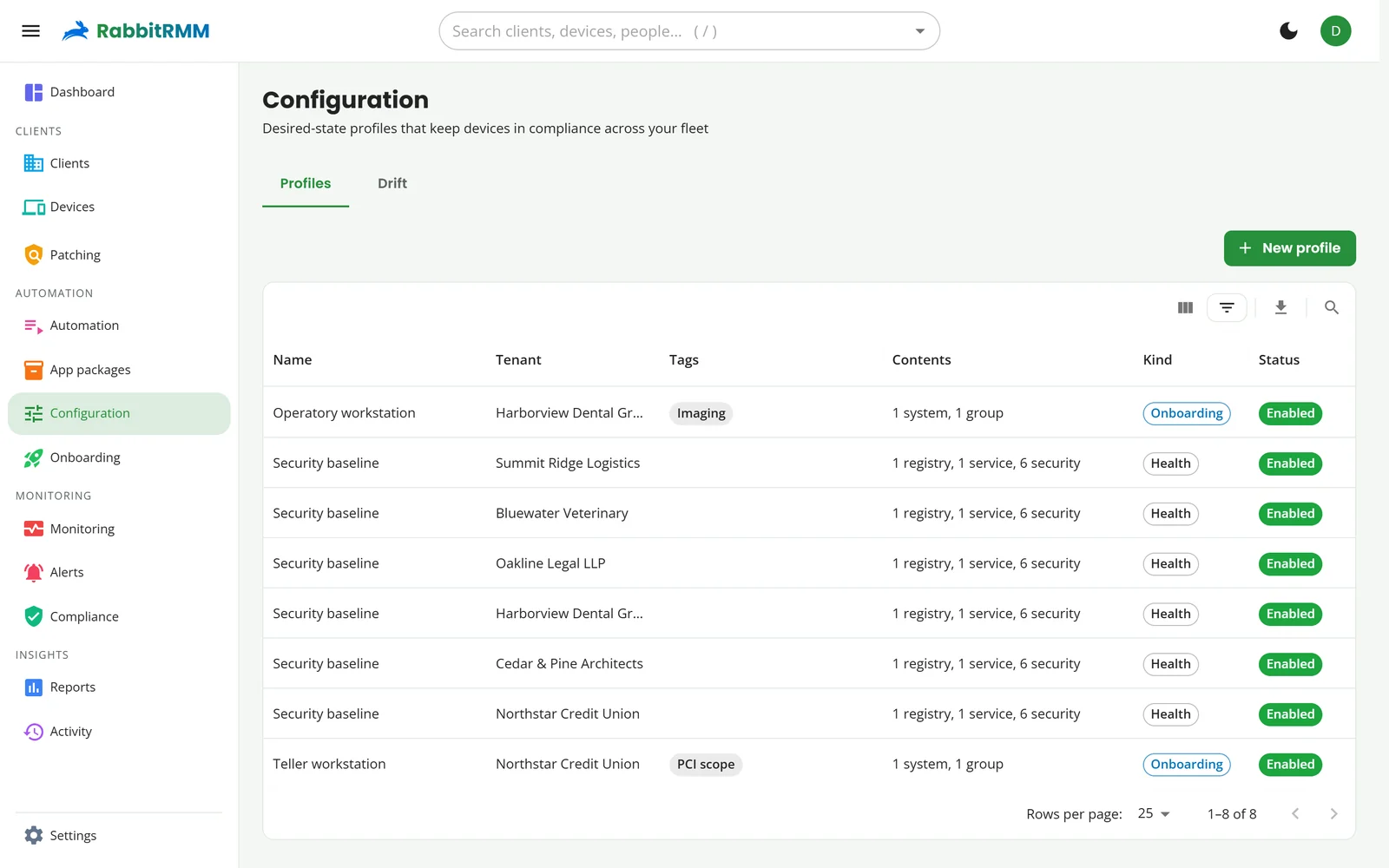
A profile is an ordered list of steps: apps, printers, mapped drives, registry values, services, Windows features, system settings, local group members, security settings and scripts. Drag steps to reorder them.
- Health profiles are enforced continuously; Onboarding profiles run once on new machines.
- Profiles apply by tag. If two profiles disagree about a setting, saving tells you before devices fight over it.
- The Drift tab lists items that are failing or were corrected, per device.
Onboarding
The Readiness board follows each new device through enrolled, inventory, tagged, configured and up to date. Templates tie tags to profiles. Bulk enrollment creates tokens for many machines, and Auto-tag rules tag devices by hostname, OS, domain, subnet, manufacturer, model or type as they arrive.
Monitoring and alerts
Monitoring holds the Policies (each a set of checks with a target) and Remediation (scripts and workflows that run when a check trips, optionally after approval).
Alerts lists every alert. Its two tabs separate Monitoring alerts from Recommendations (advice such as stale accounts, computers in AD with no agent, or networks no check covers).
- Mute keeps an alert open but silent. Resolve closes it; it reopens if the problem returns.
- The ticket column shows the PSA ticket, or Create to raise one.
- With AI connected, an alert shows a summary and a suggested resolution.
Compliance
Pick a framework (CIS Controls v8, Essential Eight, HIPAA or NIST CSF) and a client. Each control is scored from fleet data: patch state, encryption, Defender, firewall, MFA, admin counts and Microsoft 365 policies. Open a client for control-by-control detail and export the evidence as CSV.
Network
Network monitoring lives under Devices > Networking for a chosen client. The views:
| View | Use it to |
|---|---|
| Network devices | See and edit every device, assign the collector, add devices, run Discover, set locations and credentials. |
| Map | Explore the topology. Click a device for details; Paths traces the route between two devices; Export saves the map. |
| Endpoints | Find any MAC or IP and the switch port it is on. |
| Subnets and VLANs | Review subnets, choose which are swept, and see VLAN names. |
| Syslog | Search syslog by device and severity. |
| Traffic | Top talkers and conversations from NetFlow, IPFIX and sFlow. |
| Lifecycle | End-of-sale and end-of-support dates for every model. |
Open a network device for its Config (backups and diffs) and History, its health and ports, and buttons to open its SSH console or web interface through the collector.
Reports
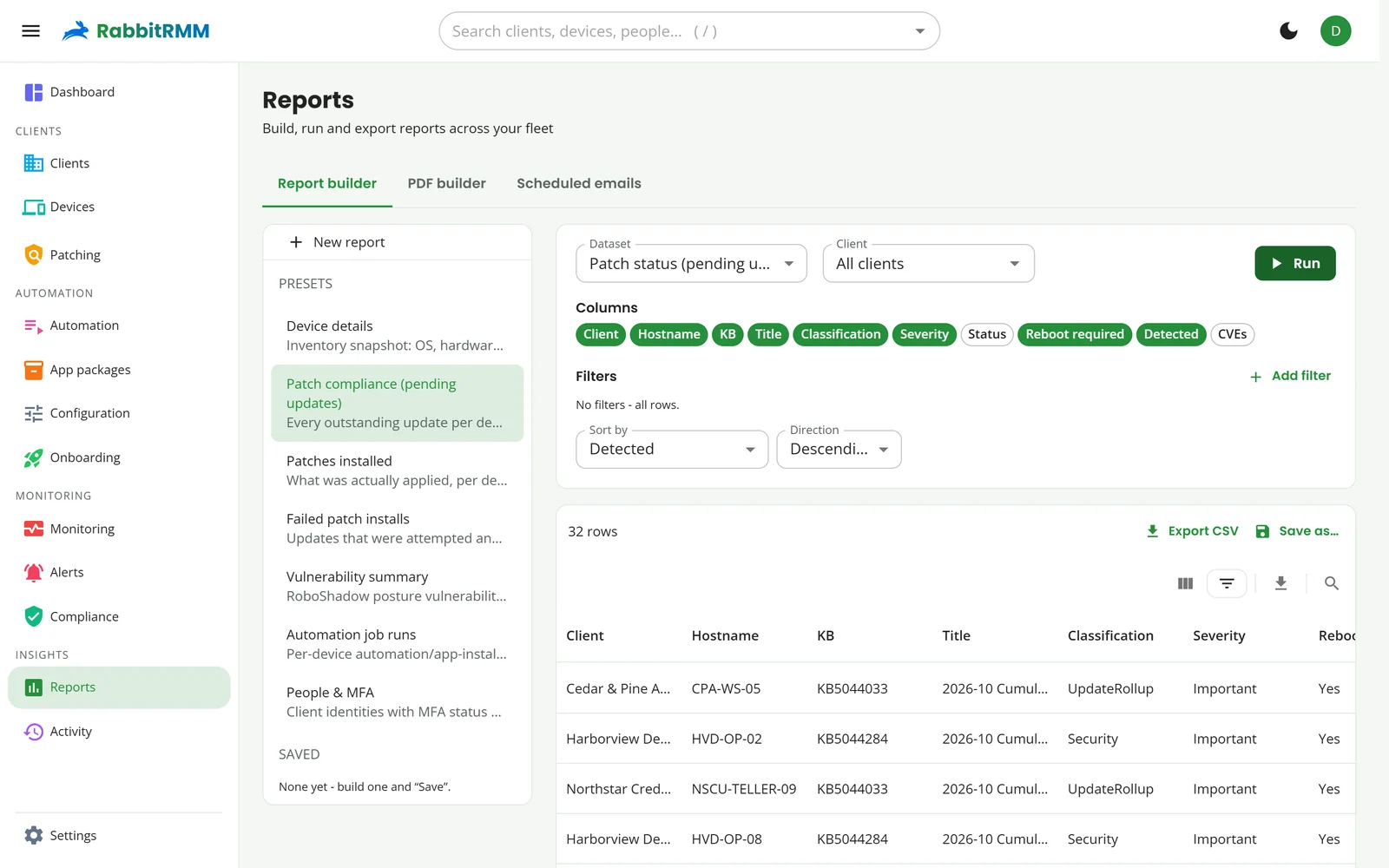
The Report builder starts from a preset or a dataset. Choose columns, filters and sort, pick a client or all, and press Run. Save a report to reuse it, export CSV, or chart it. The PDF builder composes saved reports into one branded PDF, and Scheduled emails sends reports on a schedule.
Activity
Every change anyone makes, and every job, patch run and remote session, with who did it and when. Filter by client and category. Recent deployments lists patch and app deployments with their results.
Settings
| Section | What is there |
|---|---|
| Organization, Branding | Time zone, company details, email and report logos; portal theme, logos and the agent's tray look. |
| Users, Roles | People with access and what each role can do, and for which clients. |
| Global | The tag library and other global settings. |
| Script categories, Device buttons, PSA ticket templates | Organising scripts, custom ribbon buttons, and how tickets are filled in. |
| AI operations, Notifications, Email | What AI may do, Teams channels per severity, and the mail senders. |
| Agent release | The agent version devices are offered and its signature status. |
| Microsoft 365, Client mapping | GDAP connection and matching clients across integrations. |
| Integrations | AI, PSA, Security, Documentation, Networking, Warranty and Backups, each a set of cards to connect. |