
Setup guide
From empty instance to a working fleet
Twelve steps, in the order that saves you rework. Most teams finish in about an hour and keep refining policies over the first week. Each step names the page in the portal, so you can follow along in another tab.
Have a Microsoft 365 global administrator to hand for step 4, the API keys for your PSA for step 6, and one Windows machine per client you can install the agent on for step 7.
1. Sign in and set your organization
Open app.rabbitrmm.com and sign in with your Microsoft work account. The administrator named when your instance was created is its first owner; everyone else is invited in step 2.
- Go to Settings > Organization and set your time zone. Every schedule in RabbitRMM uses it unless a device has its own.
- Add your company name and the logo used on emails and PDF reports.
- In Settings > Branding pick a theme and, if you resell under your own brand, upload the portal and tray logos.
2. Invite your team and decide who sees what
In Settings > Roles, start from the built-in roles or create your own. A role is a list of permissions and the clients it covers: all clients (including future ones) or a named set.
Then in Settings > Users, invite each person by email and give them one or more roles. They receive an invitation from your mail domain and sign in with their own Microsoft account.
Give everyone a day-to-day role without the dangerous permissions (deleting devices, running high-level scripts), and a second admin role they switch to when needed. Switch with the security-role chip in the header, or Security Level in the account menu.
3. Set up email
RabbitRMM sends invitations, patch notices, self-service scheduling links and scheduled reports through Microsoft 365, from mailboxes in your own tenant. In Settings > Email set the sender mailbox and the invite sender, then use Send test for each.
4. Connect Microsoft 365 (GDAP)
This is what brings in your clients and their people. In Settings > Microsoft 365:
- Enter your partner Directory (tenant) ID, and the Application (client) ID and client secret of the app registration RabbitRMM uses. Press Save, then Test connection.
- Press Grant admin consent and approve as a global administrator. The Graph permissions it asks for are listed on the page.
- Press Connect client access and sign in once as your GDAP service account. RabbitRMM then provisions itself into each customer tenant.
- Press Sync partner tenants, tick the customers to bring in, and press Sync selected.
Each client's People tab fills in over the next few minutes, including MFA status per person.
5. Add or tidy your clients
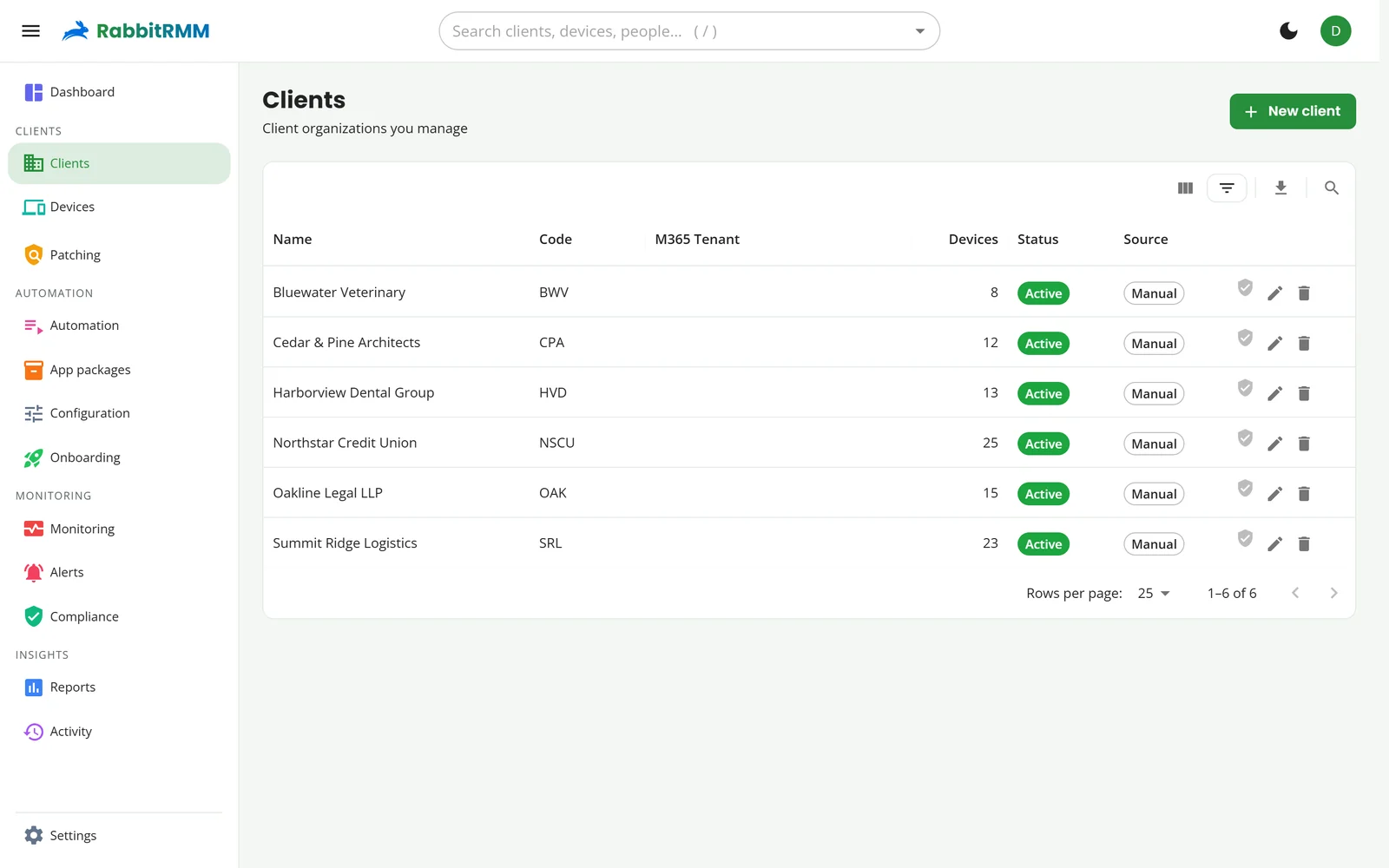
Clients imported from Microsoft 365 appear on the Clients page. Add any others with New client. Give each one a short code (it appears in hostnames and reports) and add its locations, or import them from Autotask.
6. Connect your PSA and other tools
Open Settings and pick a category under Integrations: PSA, Security, Documentation, Networking, Warranty, Backups or AI. Press Configure (or Connect) on a card and paste the keys the vendor gives you.
Then go to Settings > Client mapping: RabbitRMM matches clients to PSA companies, documentation organisations and backup customers by name. Confirm the matches and fix any it could not make.
Finally, create a PSA ticket template in Settings > PSA ticket templates. Alerts and the tray's support button use it to fill in the queue, priority and issue type.
7. Deploy the agent
There are four ways in. Three are under Add devices on the Devices page; the fourth is on any device that already has the agent.
| Option | Best for |
|---|---|
| Enroll device | One machine or a few. Creates an enrollment token for a client and gives you a PowerShell one-liner, an EXE or an MSI to run. |
| Onboarding media | Imaging a batch. A USB package that enrols each machine into the right client with the tags and profiles you pick. |
| Agent Deployment (device ribbon) | Everything else on a network that already has one agent. Open an enrolled device, press Agent Deployment and push the agent to a list of machines, with admin credentials used once and never stored. |
| Air-gap agent | Machines with no internet, patched through a master update node on their LAN. |
For RMM tools that can run a command (Group Policy, Intune, another RMM), use the MSI with the enrollment token. A machine appears on the Devices page within a minute of installing. See The agent for requirements and firewall notes.
Tokens expire and can be limited to a number of devices. Use a one-device token for ad-hoc installs and a larger one only for deployment tools, and delete tokens you no longer need.
8. Create your patch policies
Go to Patching, choose Global (all clients) or a single client in the picker, and press New policy.
- What: the classifications to install (security, critical, rollups, feature updates, drivers, definitions).
- When: days, start time and window length, in the client's time zone. Turn on run if missed for laptops that are off at night.
- Reboot: reboot if required, always, or never.
- Rings: switch them on for workstations. The default is canary 5% for 4 hours, pilot 25% for 8 hours, then everyone.
- Who: assign the policy to clients, groups, single devices or a filter such as "device type is Workstation or Laptop".
A common start: workstations three days after Patch Tuesday, in rings, at midday; servers on Sunday morning with manual approval; Defender definitions every hour.
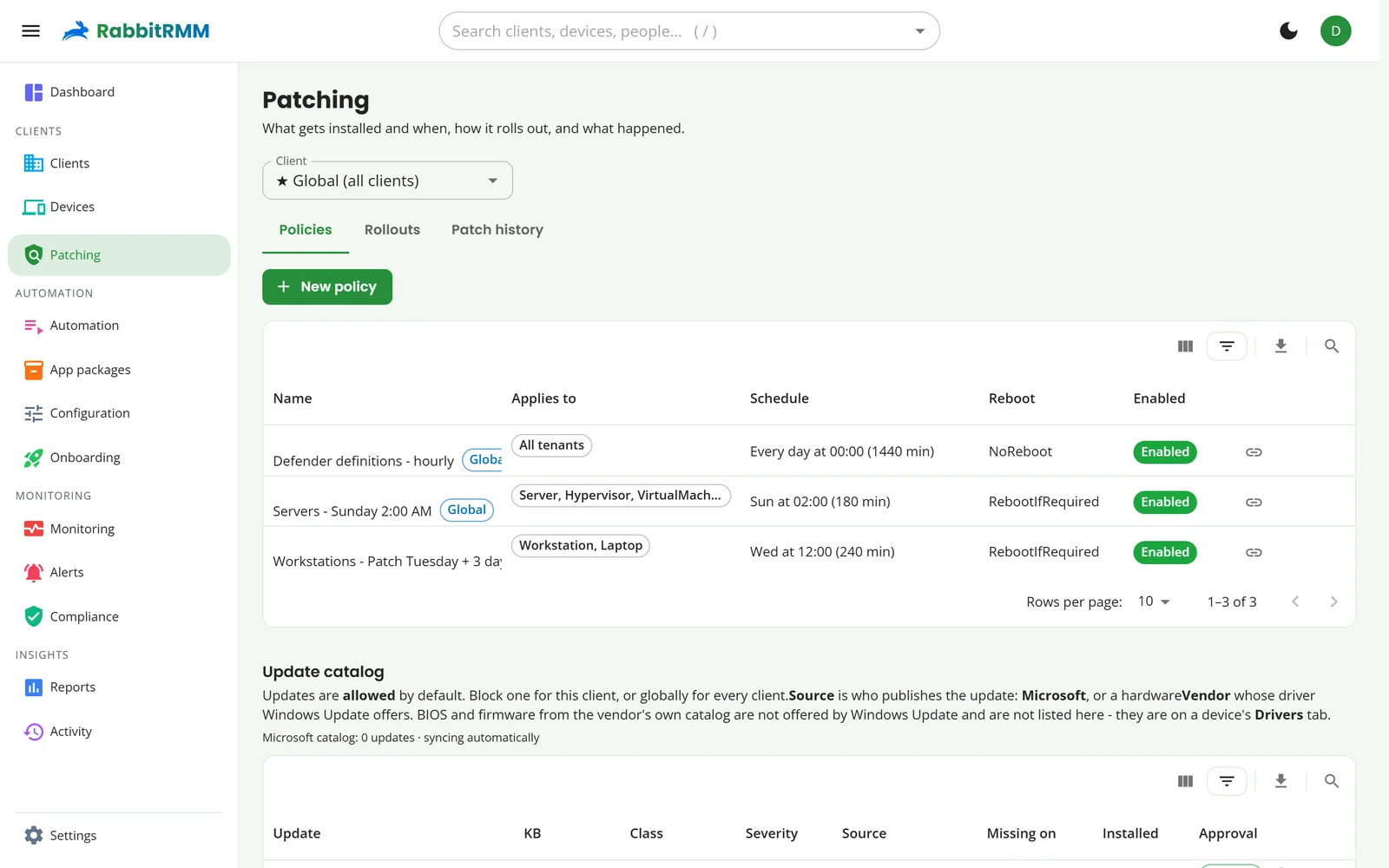
Updates are blocked by default in the catalog below the policies: approve them per client or globally, or let a policy's automatic approval handle them.
9. Turn on monitoring
In Monitoring > Policies press New policy, add checks (offline, CPU, memory, disk space, services, event log errors, apps) and choose the target. Switch on auto-ticket to open a PSA ticket from your template when a check trips, and auto-resolve to close it when the alert clears.
Some checks are always on and need no policy: hardware health, failing backups, and network uplink problems for Meraki and UniFi.
In Settings > Notifications add a Microsoft Teams channel, then route each severity to the channel you want.
10. Describe how machines should be
In Configuration create a profile for each standard you keep: a security baseline (firewall, Defender, BitLocker), and onboarding profiles per role (apps, printers, drives, local admins). Assign profiles by tag. Then in Onboarding > Templates, tie tags to profiles so a new machine is ready the moment it enrols.
11. Light up the network
Open a client, then Devices > Networking:
- Choose an always-on machine as the collector.
- Add SNMP and SSH credentials once under Client credentials.
- Press Discover. Devices appear as they answer; the Map fills in as LLDP and forwarding tables are read.
For Meraki or UniFi, connect the integration in Settings > Networking and match the organisation to the client.
12. Schedule the reports clients see
In Reports, run a preset such as Patch compliance or Patches installed, save it, and add it to Reports > Scheduled emails for each client. Use the PDF builder to combine several reports with your logo into a monthly pack.
What next
- Read the user guide for the day-to-day of each page.
- Connect an AI provider in Settings > AI for alert triage and script generation.
- Add your team's most-used scripts as device buttons in Settings > Device buttons.